
How to stop autoplay videos in Chrome
Updated 20 November 2026 · NiAnimo
Short answer: Chrome on a computer has no on/off setting for video autoplay. It can mute a site's sound, and it already holds back some autoplay with sound, but videos without sound may still start by themselves. To keep every video paused until you press play, you need a browser extension. Below is what Chrome does on its own, where it stops, and the steps with the extension we make.
What Chrome offers on its own
- No autoplay switch: Chrome's list of site settings has no "Autoplay" entry. Chrome's developer documentation describes command-line switches for testing and an
AutoplayAllowedpolicy for computers managed by an IT admin, but no everyday setting you can turn on. - Sound, per site or for all sites: "Sound" is one of the site settings you can change. For one site, click the icon to the left of the web address, open Site settings and change Sound so the site is muted. For every site, go to Settings, then Privacy and security, then Site settings.
- Chrome's own autoplay rules: according to Chrome's developer documentation, muted autoplay is always allowed. Autoplay with sound is allowed when you have interacted with the site (a click or tap), or on desktop when you have played video with sound there before.
Where that stops short
- Muting a site silences it, but the video still plays. On news sites and feeds that means moving pictures you did not ask for, and data you may not want to spend.
- Silent autoplay is always allowed, so a muted video can start the moment a page opens.
- The more you use a site, the more likely Chrome is to let it autoplay with sound, because you have interacted with it before.
Stop autoplay on every site in 2 minutes
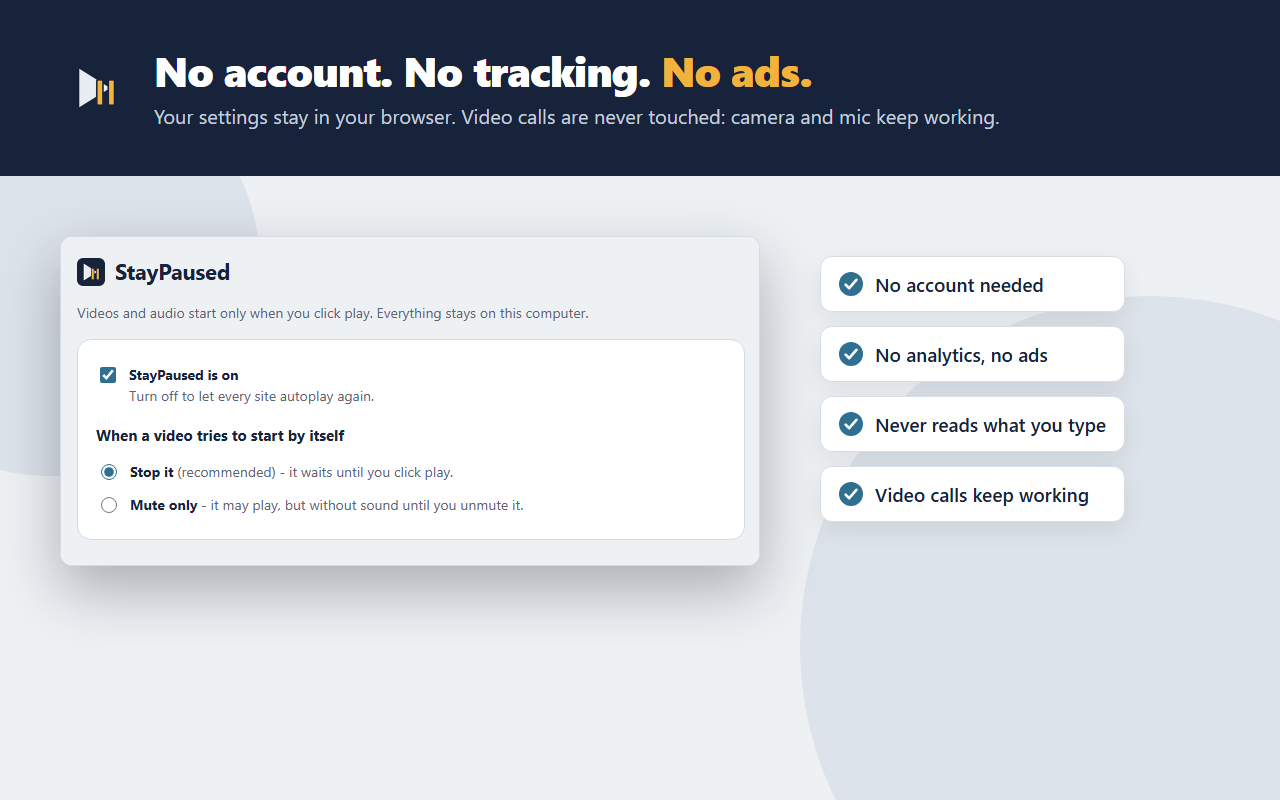
- Install StayPaused from the Chrome Web Store (free). There is nothing to set up: from now on, video and audio on every site stay paused until you click play.
- Open its settings and pick what should happen when a video tries to start by itself:
- Stop it (recommended): the video waits until you click play.
- Mute only: the video may play, but without sound until you unmute it. Sites cannot unmute themselves.
- Allow the sites you trust. Open the site, click the StayPaused toolbar button, and that site autoplays as before. Click again and reload the page to stop it there.
- Browse as usual. StayPaused also works inside embedded players, including players from other sites placed inside a page, and on videos that appear later, for example while you scroll a feed. With Stop selected, YouTube hover previews on thumbnails do not play.
- Join video calls as normal. Your camera and microphone keep working in web meetings; StayPaused never touches them.
The toolbar button shows how many videos were stopped on the current tab, so you can see it working.
With StayPaused Pro ($2.99, one time)
- Per-site rules: choose Stop, Mute only or Allow for each website.
- Stop the next video from starting when one ends. On YouTube the up-next countdown is cancelled too.
- Sync your settings across your own Chrome browsers, a keyboard shortcut (Alt+Shift+S) to allow or stop the current site, and import and export of your rules.
No subscription. Everything that is free stays free.
Questions
Can I turn off autoplay in Chrome without an extension?
Not fully. You can mute a site's sound in Site settings, and Chrome already limits autoplay with sound, but silent videos can still start by themselves. Keeping videos paused until you press play needs an extension.
Will it break videos I actually want to watch?
No. Press play and the video plays as normal, with sound. On sites where you want autoplay, allow it with one click on the toolbar button.
Does it work on YouTube?
Yes. Videos wait for your click and, with Stop selected, hover previews do not play. Stopping the next video when one ends is part of Pro.
Does it work on phones?
No. StayPaused is an extension for Chrome on a computer (Windows, Mac, Linux and ChromeOS).
Get StayPaused free on the Chrome Web Store
No account, no tracking. About StayPaused · Privacy